Author: David

Chess in C

Chess in C

Tom Kerrigan ChessI noticed that the Covid lockdown had made streaming of chess games very popular and did a search to see if I could find the source of one in C. The first one I found was actually C++ (cout << is a bit of a giveaway!) but I found this one by a developer called Tom Kerrigan. It runs from the command line and the exe is just 157 KB in size.

Note it is copyrighted but he has put his source code out there so if you are interested in seeing how a chess program is written this is an excellent place to start. His code also includes a lot of comments and includes an opening book.


How to install WSL 2 and Linux on Windows 10

How to install WSL 2 and Linux on Windows 10

Winver commandThis assumes that you have the version 2004 of Windows 10. Run the command Winver (open a command line then type winver) to see what version you have.

WSL is Windows Subsystem for Linux and lets you run one of several Linuxes (after installing) in Windows. For now it is terminal only but you can debug programs using Visual Studio. WSL 2 is the current version of WSL though you can run the older WSL 1.

Your computer also needs to support Hyper-V Virtualization to run WSL 2. If it doesn’t you can run WSL 1.

Steps.

  1. Open a PowerShell windows in Admin mode. My way of doing this is open the search window and type Powershell. Then right-click run as Admin.


When I mean Search Window, I mean the one on the Toolbar that looks like this like a magnifying glass: (highlighted in the red square)

Search Window


2. In the Powershell Windows, copy and paste this command:

dism.exe /online /enable-feature /featurename:Microsoft-Windows-Subsystem-Linux /all /norestart

3. Next run this command in the same Windows:

dism.exe /online /enable-feature /featurename:VirtualMachinePlatform /all /norestart

4. Set WSL 2 as default with this Powershell command:

wsl --set-default-version 2

Now close the Powershell Window and in the search box type Store. You should see Microsoft Store.  It’s an app on your PC. Click it to run it and type in Linux in the search box. Click Show all and you should see something like this. Pick one like Ubuntu, Debian etc.  Apart from the ones with a price against them, the rest are free. Cl;ick Get and it will install.

Linux in Microsoft Store

After it has installed, you can run it from your Start Menu. I dragged it onto the square so I have a nice clickable icon.

Windows Start MenuJust click it and your Ubuntu (or whatever) Linux will open at a terminal prompt like this.

Ubuntu Terminal


Sometimes it’s not software to blame

Sometimes it’s not software to blame

Never Assume banner
Image by Gordon Johnson from Pixabay

This last week has been a bad one for me technically speaking. First there was the Sky Q Minibox problem. I was away when it was originally setup. It would have saved me a couple of wasted days without Sky when it went wrong had I been present at the setup.

We had a power outage that lasted twenty minutes. When it came back everything powered up except the Sky Q Minibox. It displayed a couple of screens which said “when the screen goes blank, press the Home button on the Sky Q remote”. Nothing happened. Eventually (after a couple of days) I figured, it was a bit like an old BoomBox (cassette player) of mine that was never the same after a power outage. Something had blown perhaps. Time to contact technical support for a replacement?

But I did a last search and came across an interesting message on a forum. “Make sure your Sky Q Remote is paired with the Minibox”. This is one of those things that makes you sit it up and says “What?”. It’s just a remote, isn’t it , like the other ones. Except when I looked a bit closer I noticed it had no bulb or transparent plastic screen at the end. To cut a long story short, when it was paired (is it Bluetooth?) the Sky Q Minibox worked fine. D’oh… My first encounter with a non-Infra red TV remote.

It gets worse…

Yesterday I struggled trying to run a program on my two Android phones. The same phones that had worked fine with MonoGame. This was a different software dev system (Android Studio) and a different programming language (Flutter). The trouble was sometimes it would recognise one of the phones (but not the other one) and when I started copying the program it failed with ADB Error 1. I was scratching my head over this.  I’d tried configuring, all sorts, in Android Studio, in the phones. But nothing made a difference.

I did a Google and a StackOverflow answer showed up. Maybe the problem is your cable? Well I have a few Android cables lying around so I swapped it and sure enough. It worked, and now recognised both phones, the program copied and ran ok on both phones. So with the Sky remote, it was the old adage Assume= Makes an Ass of U and Me. and with the phones, I’d assumed it was the software. configuration that was wrong.

Modern C – a Free Ebook

Modern C – a Free Ebook

Modern C by Jens GustedtThis is the 2nd edition. Author Jens Gustedt has generously allowed a free version to be downloaded from his website.

If you like his book which is also published by Manning then you should consider buying a copy. He provides a 35% discount for the print or E book version.

I scanned the E-book and must admit, the bit on  signal handling taught me a lot that I didn’t know.

The E-book is nearly 300 pages long in 19 chapters.

Changing your default Font

Changing your default Font

This is one of those subjective things. Do you use the default font in text editors or do you switch to a programmer’s font when the option is possible?
For example in Visual Studio, you can select any font you want. The Monotype fonts (i.e. fixed width) are shown bold.

JetBrains, the people behind the Resharper tool for C#, Intellij Idea (the editor used in Android studio) and the Kotlin programming language have given away a new programmers font.

After downloading the font zip file, open it and unzip the multiple versions of the font. There’s 14 variations (extralight, italic etc) and also web versions that you can use in a website. I just took the regular and installed it in Windows. If you Preview the font then you get the option to install it.

In Visual Studio you have to go to Project Options then Font and Colors and select the font. After that you have to close Visual Studio and reopen it.

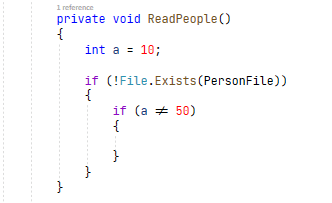
One interesting thing is that this font supports ligatures.  These are special characters that replace things like !=. Here’s what that looks like after installing this font.

Visual Studio Font with ligatures

Of course if you don’t like JetBrains Mono or want to try others programmer’s fonts, here’s an article with eleven listed.

It’s not just Visual Studio that this works with, you can change the font in Visual Studio Code and others.

Interesting C Program- What do you think it does?

Interesting C Program- What do you think it does?

Question mark
Image by Gordon Johnson from Pixabay

This is a past IOCCC winner. It needs a #include <stdio.h> to compile.

#define _ -F<00||--F-OO--;
int F=00,OO=00;main(){F_OO();printf("%1.3f\n",4.*-F/OO/OO);}F_OO()
{
            _-_-_-_
       _-_-_-_-_-_-_-_-_
    _-_-_-_-_-_-_-_-_-_-_-_
  _-_-_-_-_-_-_-_-_-_-_-_-_-_
 _-_-_-_-_-_-_-_-_-_-_-_-_-_-_
 _-_-_-_-_-_-_-_-_-_-_-_-_-_-_
_-_-_-_-_-_-_-_-_-_-_-_-_-_-_-_
_-_-_-_-_-_-_-_-_-_-_-_-_-_-_-_
_-_-_-_-_-_-_-_-_-_-_-_-_-_-_-_
_-_-_-_-_-_-_-_-_-_-_-_-_-_-_-_
 _-_-_-_-_-_-_-_-_-_-_-_-_-_-_
 _-_-_-_-_-_-_-_-_-_-_-_-_-_-_
  _-_-_-_-_-_-_-_-_-_-_-_-_-_
    _-_-_-_-_-_-_-_-_-_-_-_
        _-_-_-_-_-_-_-_
            _-_-_-_
}

When I compiled and ran it in Visual Studio it output 0.25 which is not the value it’s intended to output. That said it also messed up the formatting.

I can’t recommend this formatting BTW but then that’s the idea, to obfuscate i.e. disguise its purpose! So have you figured it out yet? I put the image on the right so as not to break up the program listing…

Monetising a game

Monetising a game

bright city lightsThe celebrity game I’m building and I’ve been describing is free to play but servers cost money, so how does it make money?

First you have to understand there are two types of game currency. (Glitz dollars and Glitz Stars). Dollars are used in-game. It’s what your character needs to earn to survive, make rent etc.

Stars are worth about 10p or equivalent and can be bought and are spent on things like Chance Bags and character auctions. (See below)

So here are a few ways I’ve thought of.

  1. The mobile apps are free but will carry Ad-mob type adverts.
  2. Chance Bags. You can buy a set of cards that can be played to have Lady Luck affect you or mainly other players such as friends. These will be cost something like 10 Stars an provide 3-5 cards. The idea is to prevent players playing to win.
  3. Character Auctions. If a player has got a high-celebrity character then they can get something back by auctioning it in the in-game auction and they get 90% of the auction price. Celebrities drop a rank when they are sold by auction (they are advertised at the lower rank) and lose all accumulated properties (but the buyer does get some benefits).
  4. Sponsorship. Anyone can sponsor and this provides in-game gifts related to the sponsor and carrying their messages, logo and a link to a website. Plugging a new album? Gift it (in game ) to musicians by sponsoring. Also sponsors can sponsors major events, festivals etc in-game, Gifts can be given at film pre-launch parties to attendees etc.
  5. Watch a video and earn in-game Glitz dollars.
  6. Pay for advertising in-game. Players can do this. A phase two development is to allow celebs to buy in-game businesses such as Bands, film production, Bars, Hotels etc. That needs carefully thought though.
  7. Buy in-game gifts for other players.
  8. GlitzVille. This is the in-game magazine. This is produced by an editor who receives a tap  of news generated in-game and can pick and choose what to write about. It’s a modest cost per issue, only a few Glitz stars and the editor receives 75%.

As with all battle plans, this will change as the game grows and I may scrap some or come up with new ideas.


How to calculate how effective a Riffle is

How to calculate how effective a Riffle is

deck of cards
Image by Hebi B. from Pixabay

In my previous post I mentioned about writing a program to determine how effective a riffle shuffle was. So here’s the code.

How it works

I’m using an array of 52 chars to hold the deck. I’m only interested in the card’s position in the deck so each card is initialised with a value in the range 0-51. I’m using three other similar sized arrays.

  • tempCards are used purely for doing the riffle.
  • distances are used to calculate the maximum distance the card moved
  • startPos tracks the cards starting position 0-51 before doing lots of rounds of riffles.

The program starts by picking up ( as a parameter) how many rounds you want it to run. It defaults to 10 if no value is input.

It then clears distances and inits cards. In each round, it starts by storing card positions in startPos. It then does seven riffles and works out how far a card has moved. If it has moved more than before (in distances) it stores it in distances.

DoRiffle works by indexing through the two 1/2 deck piles taking a card from each and a 50:50 random chance determines which of the two cards goes into the shuffled deck first and then second.

Here’s the listing.

// riffle.c by D. Bolton (C) 2020 Learncgames.com - TYou are free to redistribute but please keep this line in

#include <math.h>
#include <stdio.h>
#include <stdlib.h>
#include <string.h>
#include <time.h>

// #defines
#define MAXROUNDS 10
#define NUMRIFFLES 7
#define NUMCARDS 52

// variables
int NumRounds;
char cards[NUMCARDS],tempCards[NUMCARDS],startPos[NUMCARDS];
int distances[NUMCARDS];
time_t t;

// functions

// Convert string to int calling strtol
int GetIntArg(char* str) {
	char* ptr;
	return strtol(str, &ptr, 10);
}

// Merges two cards a and b. 50:50 chance that a above b or other way
void DoRiffle() {
	// Copy cards into tempCards
	memcpy(tempCards, cards, sizeof(cards));
	// Merge each pair of cards tempCards[i] and TempCards[i+26]
	int cardIndex = 0;
	for (int i = 0; i < NUMCARDS / 2; i++) {
		if (rand() % 2) {
			cards[cardIndex++] = tempCards[i];
			cards[cardIndex++] = tempCards[i + 26];

		}
		else {
			cards[cardIndex++] = tempCards[i + 26];
			cards[cardIndex++] = tempCards[i];
		}
	}
}

// Works out how far cards have moved, added to distances
void CalculateDistances() {
	for (int i = 0; i < NUMCARDS; i++) {
		int moved = abs(cards[i] - startPos[i]);
		if (moved > distances[i])
			distances[i] = moved;
	}
}

void DoShuffles() {
	// Clear distances and init cards
	for (char i = 0; i < NUMCARDS; i++) {
		distances[i] = 0;		
		cards[i] = i;
	}
    // do Numrounds  rounds
	for (int round =0;round<NumRounds;round++){
		// Mark where the card starts
		for (char i = 0; i < NUMCARDS; i++) {
			startPos[i] = cards[i];
		}
		// Do seven riffles
		for (int i = 0; i < NUMRIFFLES; i++) {
			DoRiffle();
		}		
		CalculateDistances();
	}
	int furthest = 0;
	for (int i = 0; i < NUMCARDS; i++) {
		printf("Distance[%d]=%d\n", i, distances[i]);
		if (distances[i]> furthest) {
			furthest = distances[i];
		}
	}
	printf("furthest moved is %d\n", furthest);
}


int main(int argc, char* argv[]) {
	srand((unsigned)time(&t));
	if (argc ==1 || argc== 2) {
		NumRounds = MAXROUNDS;
		if (argc == 2) {
			NumRounds = GetIntArg(argv[1]);
			printf("Numrounds = %d\n", NumRounds);
		}
		DoShuffles();
	}
	else {
		printf("Please supply 0 or 1 arguments e.g. riffle 60\n");
	}
}

Even with ten rounds I’ve seen cards move 51 positions. With 5,000 rounds all cards but one moved by 51 and one by 50.