Author: David

Setting up SDL3 on Linux

Setting up SDL3 on Linux

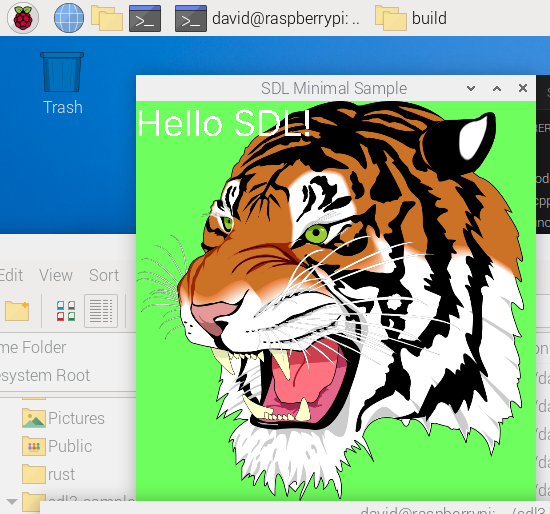
SDL3 program running on Raspberry Pi.

I knew it wasn’t going to be easy, but it turned out to be quite a bit more difficult than I thought.

The problem is, unlike SDL2, there are no dev versions of SDL3 etc. yet, so you have to build it from scratch.

I’ll be honest, I’m not sure I could have done it without this GitHub repository. User Ravbug who is very busy person (752 contributions on GitHub in the last year- I tip my hat to him or her!) who provided that repository.

It sets up SDL3, SDL_image, sdl_mixer and SDL_ttf.

Follow his link to the Wiki page Scroll down to the bottom for the Linux instructions. I can confirm that it works on Raspberry Pi as well.  You’ll need to install cmake first with

sudo apt install cmake

Then run his cmake to build everything and go for a coffee.
Now go into the build folder under sdl3-sample and do

make

That only takes a second or so.

After you’ve done that you’ll end up with a load of files including an executable sdl-min that you can run. That’s what generated the Tiger’s head – it plays The Sting film’s theme (The Entertainer) music as well demonstrating that it’s using SDL_mixer as well as SDL3 and SDL_ttf (I’m guessing) and of course SDL_image.

But that is just the start

To use SDL3 etc in your C program, you need a bit more configuration than with SDL2. I’m in uncharted waters here but used an AI- Claude 4 to help me get through and it did.

The problem is you have to tell VS Code where the header files are located, the .so files and also the executable needs to know at runtime.

I set up Ravbug’s sdl3_sample in my home folder so all paths start /home/david/sdl3-sample. 

This is my tasks.json


{
    "version": "2.0.0",
    "tasks": [
        {
            "type": "shell",
            "label": "clang-14.0 build active file",
            "command": "/usr/bin/clang-14",
            "args": [
                "-I/home/david/sdl3-sample/SDL/include",
                "-I/home/david/sdl3-sample/SDL_image/include", 
                "-I/home/david/sdl3-sample/SDL_mixer/include",
                "-I/home/david/sdl3-sample/SDL_ttf/include",
                "-g",
                "${file}","${workspaceFolder}/hr_time.c",
                "-L/home/david/sdl3-sample/build",	
                "-Wl,-rpath,/home/david/sdl3-sample/build",				
                "-o",
                "${fileDirname}/${fileBasenameNoExtension}",
                "-lSDL3",
                "-lSDL3_image", 
                "-lSDL3_ttf"   

            ],
            "options": {
                "cwd": "/usr/bin"
            },
            "group": {
                "kind": "build",
                "isDefault": true
            }
        }
    ]
}

The lines that are SDL3 specific include the -I’s to provide the include path. -L the path to the .so files and the -rpath line is the path to the runtime files which gets linked into the executable.

If you add these three lines into c_cpp_properties.json then you’ll also avoid the dreaded red squiggles.

            "includePath": [
                "${workspaceFolder}/**",
                "/home/david/sdl3-sample/SDL/include",
                "/home/david/sdl3-sample/SDL_image/include",
                "/home/david/sdl3-sample/SDL_ttf/include"
            ],

And your C’s #includes need the files prefixed like this :

#include <SDL3/SDL.h>
#include <SDL3_image/SDL_image.h>
#include <SDL3_ttf/SDL_ttf.h>

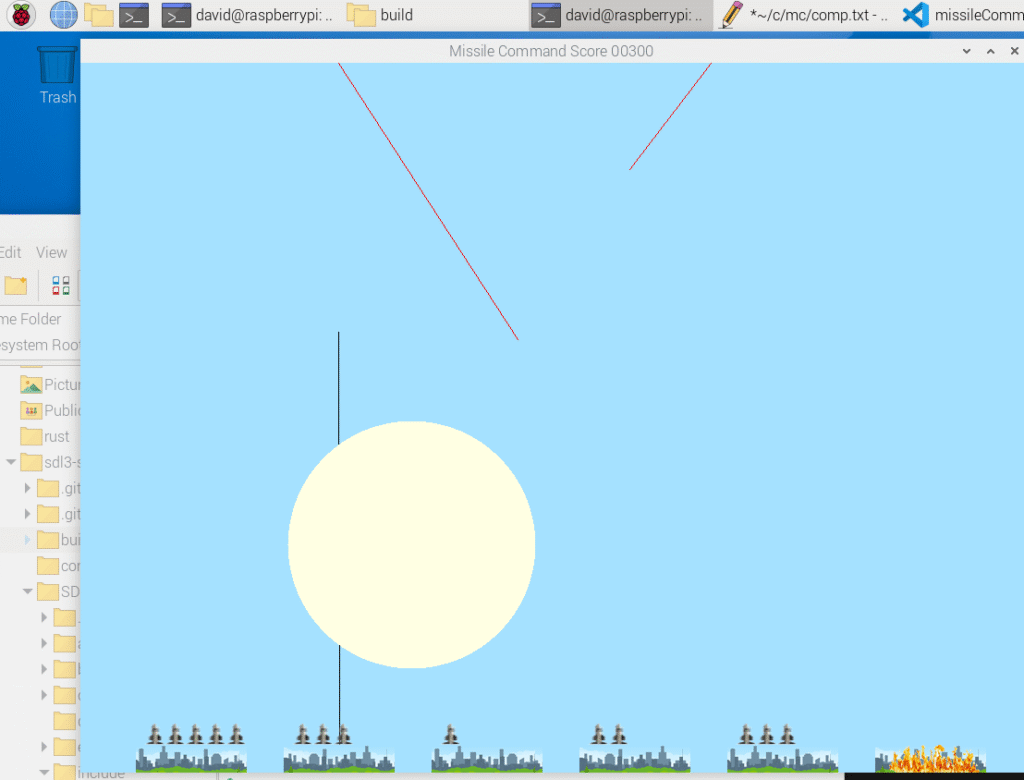
And here it is running on my Pi.

Missile Command running on a Raspberry Pi 5 with SDL3

Converting from SDL2 to SDL3 on Windows

Converting from SDL2 to SDL3 on Windows

Missile Command running with SDL3

These notes were made when converting an existing C game that used SDL2 to SDL3 on Windows. The game was originally developed for Linux Format and I had got it running on Windows with SDL2.

Windows include paths have been made consistent with Linux. The include files path for SDL3 need to be SDL3\… when setting them up. For SDL2, I had them in a folder c:\SDL2\include but noted that in SDL2.h include files were like this:

#include "SDL_main.h"
#include "SDL_stdinc.h"

While in SDL3’s SDL.h they are

#include <SDL3/SDL_stdinc.h>
#include <SDL3/SDL_assert.h>

So I put them c:\SDL3\SDL3

When you include them in your software they are like this:

#include <SDL3/SDL.h>
#include <SDL3/SDL_image.h>

Which is how they are in Linux.

The rest of these notes are taken from the differences between the SDL2 and SDL3 versions of the game. They are not complete but intended to give you an idea of some of the changes you may need to do.

SDL_TTF

TTF_RenderUTF8_Blended( is now TTF_RenderText_Blended with an extra text length parameter.

SDL_Rects are mostly replaced by SDL_FRect

This is a big change. Everywhere I was passing in an SDL_Rect became an SDL_Frect which is four floats rather than four ints.

SDL_RenderCopy is now SDL_RenderTexture and the last two params are now SDL_FRects.

To fix this I used a load of (float) casts.

SDL_RenderDrawLine becomes SDL_RenderLine and has an SDL_FRect parameter instaed of SDL_Rect.

Same for SDL_RenderDrawPoint which becomes SDL_RenderPoint.

SDL_GetMouseState keeps the same name but returns float * for both parameters now.

Setup changes slightly

There’s no SDL_SetMainReady() and SDL2main.lib is gone.

Also gone is SDL_INIT_EVERYTHING in SDL_Init()– you have to or the specific subunits. E.g. SDL_INIT_VIDEO | SDL_INIT_EVENTS

Also there’s no SDL_RENDERER_PRESENTVSYNC for SDL_CreateRenderer. Vsync is disabled by default as I found when my game ran about 30x faster and finished in a few seconds! Instead you need to call SDL_SetRenderVSync(renderer, 1) where 1 is syncing with each retrace, or 2 with every 2nd retrace.

Several of the events have been renamed, so SDL_KEYDOWN becomes SDL_EVENT_KEY_DOWN, SDL_MOUSEBUTTONDOWN becomes  SDL_EVENT_MOUSE_BUTTON_DOWN and similar for other events.  Also event.key.keysym.sym becomes event.key.key.

Finally SDL_FreeSurface( becomes SDL_DestroySurface.

I’m sure there are more but changing these was sufficent to get my game compiling and running correctly with SDL3.

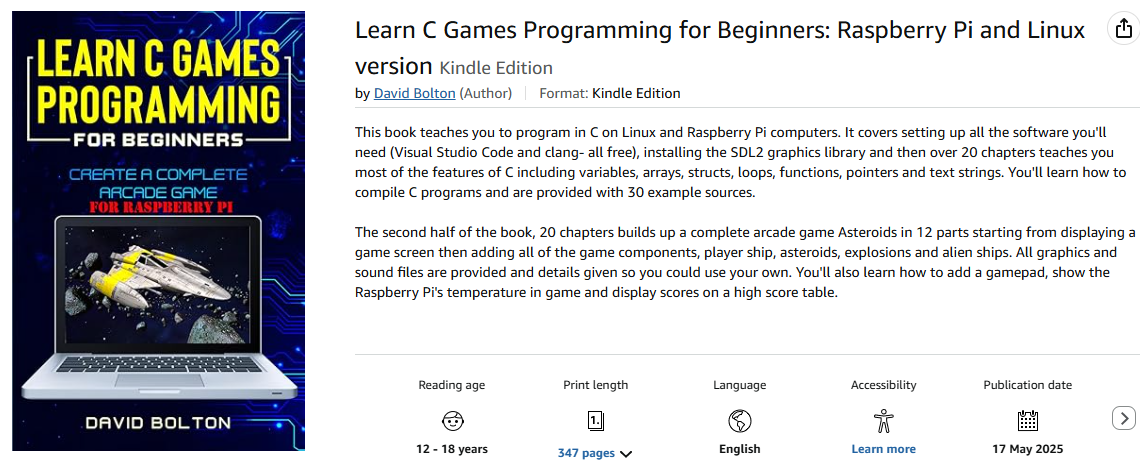
Chapter list for my recent eBook

Chapter list for my recent eBook

Book cover for learn C games programming

The files on GitHub have been revised and now include all image and sound files and tasks.json updated for clang-14. Note because GitHub doesn’t allow hidden files/folders like .vscode to be uploaded, I’ve included the .vscode folders as vscode and you need to rename them.

Chapter 1. Introduction to C programming
Chapter 2. Setting up a development environment
Chapter 3. Writing your first C program
Chapter 4. Working with Variables and Data Types
Chapter 5. So what is a pointer?
Chapter 6. A little Bit of C code
Chapter 7. A Quick Overview of Visual Studio
Chapter 8. Array variables
Chapter 9. Loop the loops
Chapter 10. More loops

Chapter 11. About operators
Chapter 12. Structs
Chapter 13. Functions
Chapter 14. More about functions
Chapter 15. Pointers
Chapter 16. Text Strings
Chapter 17. The Asteroids Game
Chapter 18. Architecture of C Programs
Chapter 19. Graphics
Chapter 20. An SDL Demo program

Chapter 21. The Game Loop
Chapter 22. Drawing Text
Chapter 23. More Game Elements
Chapter 24. Adding in asteroids
Chapter 25. Adding in bullets
Chapter 26. Editing with Visual Studio Code
Chapter 27. Restructuring
Chapter 28. Show the Score
Chapter 29. Explosions
Chapter 30. Sounds

Chapter 31. Detecting Collisions Part 1
Chapter 32. Detecting Collisions Part 2
Chapter 33. Detecting Collisions Part 3
Chapter 34. Passing Parameters into functions
Chapter 35. Detecting Collisions Part 4
Chapter 36. Ever Wondered about if (!value)
Chapter 37. Adding Level Structure
Chapter 38. Alien Ships!
Chapter 39. The High Score
Chapter 40. Finishing off

Debugging C/C++ and Rust with codelldb

Debugging C/C++ and Rust with codelldb

Extensions for C/C++As a user of Visual Studio since about VS 5, I’ve become accustomed to being able to debug. With VS Code, it’s also been easy but now that I program in C and Rust, the codelldb extension makes things very easy. You need other extensions: for Rust- the Rust Analyzer extension and for C/C++ the Microsoft C/C++ extension.

And for debugging for both the codelldb extension which is shown.  It uses the usual Microsoft debugging keys: F5 to start F10 to step over, F11 to step into and F9 to toggle a breakpoint.

Below is an example of debugging a Rust program.

debugging Rust program in VS Code

Rust on Windows – problem with sdl2.lib

Rust on Windows – problem with sdl2.lib

I’m currently unable to compile Rust programs that use SDL2 on Windows. No problems on Ubuntu or Raspberry Pi OS, just Windows 11.
Compiling an SDL2 app (in Rust) on WindowsAlthough it says cannot open input file SDL2.lib, I think the problem is a parameter passed into Link.exe.
The text from the image above is listed below- I’ve broken it to make it readable as it’s displayed preformatted and unmodified it is all on a single very wide line!

 = note: "C:\\Program Files\\Microsoft Visual Studio\\2022\\Community\\VC\\Tools\\MSVC\\14.43.34808\\bin\\HostX64\\x64\\link.exe" 
"/NOLOGO" "C:\\Users\\dhbol\\AppData\\Local\\Temp\\rustcA1PhoK\\symbols.o" "<70 object files omitted>" 
"D:\\development\\rustapps\\choice\\target\\debug\\deps/{libsdl2-f8d94d30d19bed49.rlib,libsdl2_sys-325e30d8e9547ff4.rlib,
libbitflags-d15393d08e2f31fc.rlib,liblazy_static-c28c0e13093a4168.rlib,liblibc-851e0bf801239f69.rlib}.rlib" 
"<sysroot>\\lib\\rustlib\\x86_64-pc-windows-msvc\\lib/{libstd-*,libpanic_unwind-*,libwindows_targets-*,
librustc_demangle-*,libstd_detect-*,libhashbrown-*,librustc_std_workspace_alloc-*,libunwind-*,libcfg_if-*,liballoc-*,
librustc_std_workspace_core-*,libcore-*,libcompiler_builtins-*}.rlib" "SDL2.lib" "SDL2_image.lib" "SDL2_ttf.lib" 
"legacy_stdio_definitions.lib" "kernel32.lib" "kernel32.lib" "advapi32.lib" "ntdll.lib" "userenv.lib" "ws2_32.lib" 
"dbghelp.lib" "/defaultlib:msvcrt" "/NXCOMPAT" "/OUT:D:\\development\\rustapps\\choice\\target\\debug\\deps\\choice.exe" 
"/OPT:REF,NOICF" "/DEBUG" "/PDBALTPATH:%_PDB%" "/NATVIS:<sysroot>\\lib\\rustlib\\etc\\intrinsic.natvis" 
"/NATVIS:<sysroot>\\lib\\rustlib\\etc\\liballoc.natvis" "/NATVIS:<sysroot>\\lib\\rustlib\\etc\\libcore.natvis" 
"/NATVIS:<sysroot>\\lib\\rustlib\\etc\\libstd.natvis"
= note: some arguments are omitted. use `--verbose` to show all linker arguments
= note: LINK : fatal error LNK1181: cannot open input file 'SDL2.lib'␍

But if you try running part of it like the first line
“C:\\Program Files\\Microsoft Visual Studio\\2022\\Community\\VC\\Tools\\MSVC\\14.43.34808\\bin\\HostX64\\x64\\link.exe”
“/NOLOGO” “C:\\Users\\dhbol\\AppData\\Local\\Temp\\rustcA1PhoK\\symbols.o”

Well the path to link..exe is correct, but there’s no  rustcA1PhoK\symbols.o in that temp folder. Any suggestions welcomed…

I just solved it.

I’ve left this in, in case anyone else has this problem.

You need to add an environment variable LIB with the address of the SDL .lib files including ttf, image and mixer. Make sure they’re all in this folder:

C:\Users\dhbol\.rustup\toolchains\stable-x86_64-pc-windows-msvc\lib

The bold part of the path will be different on you PC.

In File Explorer, right-click on This PC then click Properties on the popup menu.

File Explorer - This PC,.


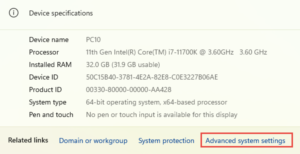
It’ll open Settings – About, and you need to click Advanced system settings.

settings_about

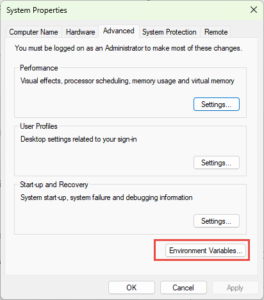
This opens System Properties and on that you click Environment variables.

System properties on Windows

Environment variables popup on Windows


Now just click New and add Lib and that path It should look something like mine. Now reopen Visual Studio and your SDL2 Rust app should now build and run.

Interesting bug with controllermap

Interesting bug with controllermap

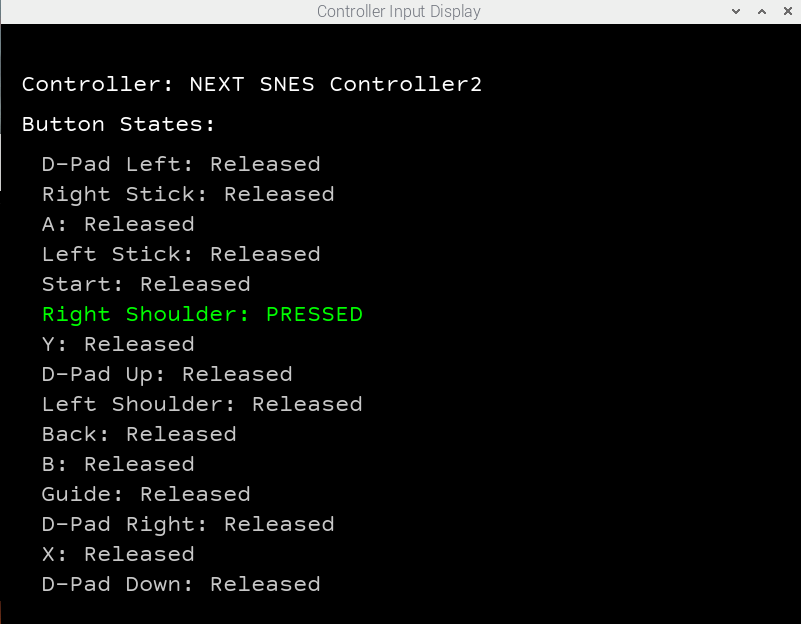
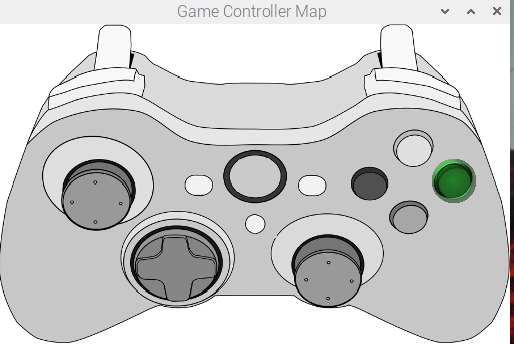
Running a Rust program to show gamepad controls

So I’ve been playing with a Rust program that uses the config string generated by controllermap. It shows all the keys and the text of a particular button turns green when you press it and it shows PRESSED/RELEASED.

But it got A and B buttons mixed up and also X and Y. I’d press A, it highlighted B etc.

I checked my code, it wasn’t there. I ran controllermap again and it generated a similar config string.

I then went back to the Pi version of Asteroids, put it on a Pi, started debugging it, pressed the fire button and it hit the line of code for the A button. D’oh.

The only conclusion I can come up with is that controllermap gets it wrong for my gamepad. I had somehow missed it when I added gamepad control for the Asteroid Pi.

It’s quite easy to fix.  This is what the full text in gamepad.txt look like.

030000001008000001e5000010010000,usb gamepad,platform:Linux,crc:417e,a:b2,b:b1,x:b3,y:b0,back:b8,start:b9,leftshoulder:b4,rightshoulder:b5,leftx:a0,lefty:a1,

but we’re only interesed in the button mappings for a,b, x and y which are in bold.

a:b2,b:b1,x:b3,y:b0,

Just swap the a b mappings and the x and y so it looks like

a:b1,b:b2,x:b0,y,b3

Then save the file and it now works correctly.


New tutorial posted – how to build controllermap in Linux

New tutorial posted – how to build controllermap in Linux

Controllermap utility

Remember controllermap? The utility that creates a configuration string for a game pad etc. I found that it is no longer installed by default when you install libsdl2-dev on Linux.  I found the hard way, trying to use it on my new Raspbverry Piu 5.

But the source code is available for it in the libsdl 2 releases.

So I wrote a quick tutorial that explains how to get the source code and build it using clang on VS Code on a Pi or any Linux box.  It’s linked here or you can find it on the tutorials menu.

How fast is a Raspberry Pi 5?

How fast is a Raspberry Pi 5?

Raspberry PI 5I recently bought one with 8 GB RAM pictured above. I haven’t got an SSD for it yet so am still pottering about with an SD Card.

I’ve installed VS Code, clang. and Rust along with the VS Code extensions Rust-Analyzer and codelldb.

Out of curiosity I compiled and ran a Rust program that reads in a text file of 1,000 lines of text with each line holding 7 random cards like this: AH 6D 2C 4S JD QH QC.

The idea is to load the file into RAM then process each line and determine the best poker hand.

On my PC 11th Gen Intel(R) Core(TM) i7-11700K @ 3.60GHz (which runs Windows 11), I compared running the Rust program in Windows 11, on Ubuntu 24.04 LTS running in a Hyper-V VM on the same PC and on the Raspberry Pi 5 using it’s own Debian (Bookworm) version.

Here are the times per hand.

  • Windows: 175 ns.
  • Ubuntu on Hyper-V 125 ns
  • Raspberry Pi 5: 175 ns.

You can download the project with the test cards from GitHub. This link is a zip file containing the project file.

To run it in release in VS Code, in the terminal type in

cargo run --release 1000_card_hands.txt
Timings running under Ubuntu


Or you can view the test cards which include the results with commemts in the test file. No need to run it release.

cargo run --features=show_cards test_card_hands.txt

Showing cards with test data

What is so suprising is that the time on Windows and Rapberry Pi 5 are the same. Windows is running a virus checker (Windows Defender) and I guess that might slow it a bit.

Yet another fix

Yet another fix

But no AI generated image this time.

The problem seems to be with Electron which is the technology that drives VS Code.

Normally I use code or code . when I’ve opened a terminal and done a cd to the folder containing the project.

What fiuxes the VS Code crash with Error 5 is adding this on the end of the command

--js-flags="--nodecommit_pooled_pages"

so use either of these.

code --js-flags="--nodecommit_pooled_pages" or 

code . --js-flags="--nodecommit_pooled_pages"

I’ve tested it with my Pi 4 and it has been rock solid. The bug report and the fix are here on GitHub.